
Blog
Bestes Antivirusprogramm für Familien mit mehreren Geräten

Finding the best antivirus for family multiple devices means solving a coverage problem, not simply choosing a familiar brand. A household may have Windows laptops, a Mac used for work, Android phones, iPhones, tablets, a shared computer and devices used by children. Some people need straightforward malware protection, while others need help reviewing web safety, phishing protection, privacy controls or parental features.
The right choice should therefore fit the household’s actual devices and habits. Start with a complete inventory, check whether the product supports every relevant platform, and confirm how many devices the licence covers. Then review the features that matter to your family instead of assuming that every antivirus package offers the same controls on every operating system.
How to count devices and users in a household
Count devices first, then consider the people using them. A licence may be shared across several devices, but the practical value depends on whether those devices are all eligible and whether the licence can be managed conveniently.
- Computers: include each Windows PC, MacBook, iMac, family laptop and shared desktop.
- Mobile devices: count Android smartphones, iPhones and tablets that access email, banking, school platforms or social networks.
- Secondary devices: include an older laptop, a travel computer or a device kept for homework. Infrequent use does not remove its security needs.
- Shared equipment: count a computer used by several family members as one protected device, but consider the different risks created by each user.
- Future replacements: leave reasonable room if a household regularly replaces phones or adds a computer.
Do not confuse the number of people with the number of devices. One parent may use a work laptop, personal phone and tablet, while one child may use a school laptop, gaming PC and phone. A family licence is useful when the total device count is more important than assigning a separate single-device purchase to every person.
Make a small table before buying:
| Household item | Operating system | User | Needs protection? |
|---|---|---|---|
| Personal laptop | Windows | Parent | Ja |
| Family computer | Windows or Mac | Several users | Ja |
| Smartphone | Android or iOS | Child | Check platform support |
| Tablet | Android or iOS | Shared | Check platform support |
This inventory also exposes devices that are often forgotten, such as an old phone used for authentication or a laptop that is only switched on during holidays.
Essential protection for computers and mobile devices
For most families, the starting point is coverage across the operating systems actually in use. A product listed for Windows, Mac, iOS and Android can be a practical match for a mixed household, but do not assume that every function is identical on each platform. Before installation, check the vendor’s current documentation for supported versions, system requirements and available features.
Families should also check how the subscription is activated and administered. A clear product identity, a recognised publisher and a manageable licence can reduce confusion when several people need protection. Keep the activation information in a secure household record rather than sending licence details through informal chat messages.
Antivirus software is one layer of home device security. It does not replace operating-system updates, secure account practices, backups or careful decisions about downloads. A useful household setup includes:
- Automatic updates for operating systems, browsers and installed applications where available.
- Screen locks and strong, unique passwords for computers and mobile devices.
- Multi-factor authentication on important email, banking, shopping and social accounts.
- A backup routine for family photos, schoolwork, tax documents and other irreplaceable files.
- Separate user accounts where children and adults share a computer.
- A way to remove protection from an old device and install it on a replacement, subject to the product’s licence terms.
Phones deserve the same attention as computers. They contain authentication codes, personal photographs, messages, payment applications and location-related information. If a security product supports a mobile platform, review what the mobile edition actually does and which permissions it requests. Platform support is important, but it is not a promise that a phone provides exactly the same controls as a desktop computer.
Web, phishing and identity protection features
Malware is only one part of family device security. A household can lose access to an account after responding to a convincing message, installing a fake application or entering a password on a fraudulent website. Adults and children may also encounter unsafe downloads, misleading advertisements and impersonation attempts.
When comparing products, look for clear information about the following areas:
- Malware detection: how the product scans files, downloads and applications on the supported device.
- Web protection: whether it can warn about dangerous websites or links, and on which browsers and platforms.
- Phishing awareness: whether suspicious pages, messages or login forms are checked, and how warnings are presented.
- Privacy controls: whether the product offers relevant tools for account, camera, microphone or personal-data concerns.
- Identity-related alerts: whether any monitoring service is included, in which countries it operates and what information it covers.
Do not treat a feature name as proof that a specific product includes it. Read the product documentation for the edition and platform you intend to use. Some capabilities may require a separate account, may not be available in every country or may differ between Windows, Mac, Android and iOS.
Families should also establish a simple response rule: never approve an unexpected login request, never share a verification code, and verify a payment or account message through the organisation’s official application or a trusted contact method. Antivirus software can support these habits, but it cannot reliably compensate for a user voluntarily giving a scammer access.
Parental controls and privacy considerations
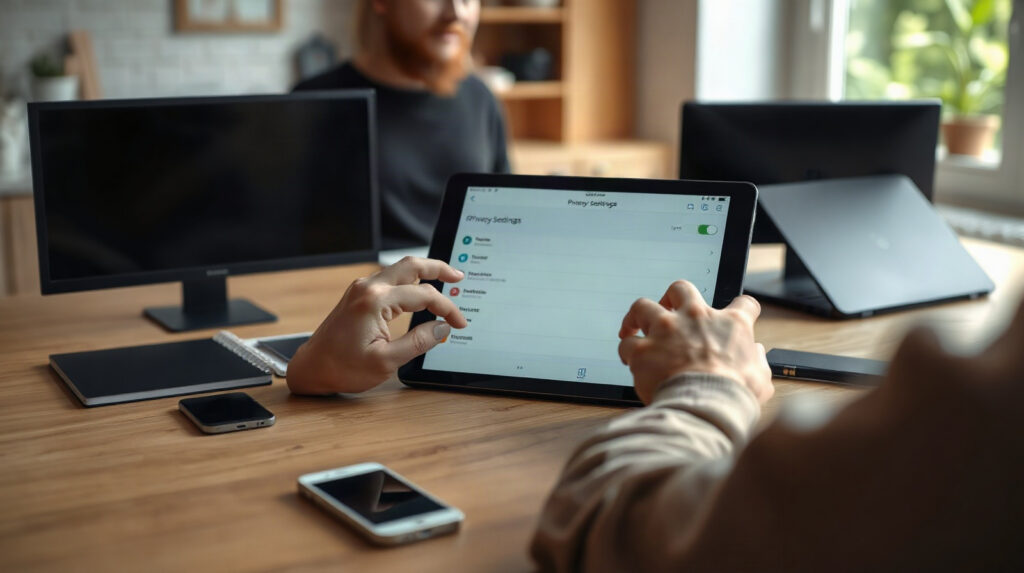
Parents often search for antivirus that can also help them protect children online. These are related but different needs. Antivirus focuses on threats to the device and files. Parental controls may involve screen-time limits, content filtering, application rules, location features or activity reports. A product’s antivirus coverage does not automatically mean that all of these controls are included.
Before choosing a family security product, decide what supervision is appropriate for the child’s age and situation. Younger children may need help avoiding unsuitable websites and unsafe downloads. Older children may need guidance about phishing, social engineering, privacy settings and suspicious direct messages rather than constant monitoring.
Ask practical questions:
- Does the selected edition include parental controls, or would another service be needed?
- Are the controls available on the child’s operating system?
- Can each child have an appropriate profile or rule set?
- What information is collected, and who can view activity reports?
- Can the family explain the rules clearly and review them as the child becomes more independent?
Privacy matters for adults as well as children. Read the vendor’s privacy information before enabling optional monitoring features. Use the least intrusive setting that meets the family’s genuine safety needs, keep administrator access limited, and avoid sharing detailed activity reports unnecessarily.
Comparing family antivirus coverage
The following products provide different coverage sizes and are listed for the platforms shown. The table describes the available product facts; it does not assume that all editions have the same technical functions.
| Produkt | Listed platforms | Licence coverage | Am besten geeignet für | Empfehlung |
|---|---|---|---|---|
| Bitdefender Family Pack 2027 | Windows, Mac, iOS, Android | 1 year, 15 devices | Larger or mixed-platform households | Choose when the family needs broad capacity across many devices and prefers a dedicated family product. |
| Norton 360 Premium 2027 | Windows, Mac, Android, iOS | 1 year, 10 devices | Families with up to ten eligible devices | Choose when ten-device coverage matches the inventory and a Norton-managed solution is preferred. |
| Panda Dome Complete 2027 | Windows, Mac, Android, iOS | 1 year, 1, 3, 5 or 10 devices | Households that want to size coverage closely | Choose the device tier that matches the counted devices without paying for substantially unused capacity. |
Bitdefender Family Pack 2027 is the strongest numerical fit for a large household or a family with many current and future devices. Its listed one-year licence covers 15 devices and supports Windows, Mac, iOS and Android. It is also suitable when the buyer wants a clearly identified family-focused Bitdefender product rather than several unrelated licences.
Norton 360 Premium 2027 covers up to 10 devices for one year across Windows, Mac, Android and iOS. It can suit a household whose inventory fits within ten devices and that wants a defined Norton product for installation, account management and licence administration. Count carefully before choosing it if several children use more than one device each.
Panda Dome Complete 2027 offers the most choice in licence size: 1, 3, 5 or 10 devices. This makes it practical for a single user, a small household or a family that wants to align the licence with a known device count. Select the correct tier at checkout, then verify that every device in the planned installation is included.
These recommendations are based on platform and device-count facts. For detailed decisions about web filtering, identity monitoring, parental controls, VPN tools or other functions, consult the current product documentation before purchase. Availability and behaviour can depend on the operating system, region and edition.
Choosing between one-device and family coverage
A one-device licence can be sensible when one person uses one computer and has no relevant phone, tablet or second computer to protect under the same purchase. It may also be appropriate for a dedicated machine with a clearly defined role.
Family or multi-device coverage is usually easier to justify when:
- Several people use computers and mobile devices.
- The household has a mixture of Windows, Mac, Android and iOS devices.
- Parents want one recognisable product rather than several separate subscriptions.
- Devices are replaced or added during the licence period.
- A shared computer is used for banking, schoolwork, personal documents or shopping.
Do not buy a larger licence solely because the number sounds attractive. An oversized plan can make administration less clear if devices are forgotten or no longer used. Conversely, under-counting can leave a child’s phone or a shared laptop outside the intended protection. The best choice is the smallest suitable coverage with enough practical room for the household’s normal changes.
A simple household security maintenance routine
After installation, security should become a routine rather than a one-time purchase. Once a month, review the device list and remove devices that no longer belong to the household. Confirm that the current computers and mobile devices are receiving updates and that the security application is active.
Every few months, review account security with the family. Check important passwords, multi-factor authentication, recovery details and the permissions granted to unfamiliar applications. Discuss one realistic scam example so that children and adults know what to do when a message creates urgency.
Use this home device security checklist:
- Count every current computer, phone and tablet.
- Record the operating system for each device.
- Choose coverage that meets the total count, with reasonable room for replacement devices.
- Install only the edition intended for the device and follow the vendor’s activation instructions.
- Enable updates and review important security notifications.
- Set up backups and test that important files can be restored.
- Teach the household not to share passwords, verification codes or remote-access permissions.
- Review the device list and privacy settings regularly.
Genuine Bitdefender, Norton and Panda licences are available from KEYFORREST with instant electronic delivery. Check the current product page for the exact edition, device coverage, platform information and current price before ordering.
Häufig gestellte Fragen
What is the best antivirus for family multiple devices?
There is no single best choice for every household. Bitdefender Family Pack 2027 covers 15 devices, Norton 360 Premium 2027 covers 10, and Panda Dome Complete 2027 is available for 1, 3, 5 or 10 devices. Choose according to your counted devices, platforms and preferred product.
Can one family antivirus protect both computers and phones?
Yes, the products compared here are listed for Windows, Mac, Android and iOS. Check the vendor’s current requirements and feature availability because protection and controls can differ between desktop and mobile platforms.
Does antivirus automatically protect children online?
No. Antivirus can be part of family antivirus protection, but parental controls and online education are separate considerations. Confirm whether the selected edition includes the supervision features your family needs.
Should I count tablets and old phones?
Count any device that still accesses email, accounts, personal files, school services or the internet. An old device used for authentication or occasional browsing can still create security risk.
Is a 15-device licence excessive for a family?
It depends on the inventory. A 15-device licence can suit a large or mixed-platform household with several users and devices. For a smaller setup, a 3-, 5- or 10-device option may be a closer match.

Über Marios Chaidousis
Verwandte Beiträge

So richten Sie Antivirus-Ausnahmen sicher ein
-
Veröffentlicht von Marios Chaidousis
Antivirus-Ausnahmen können einen echten Fehlalarm beheben, doch eine zu weit gefasste Regel kann einen ungeschützten Pfad für Malware schaffen. Dieser praktische Leitfaden erklärt, wie Sie eine Datei überprüfen, die kleinstmögliche Ausnahme hinzufügen und sie entfernen, sobald der Grund dafür nicht mehr besteht.

Business-Antivirus vs. Heim-Antivirus: Was ändert sich?
-
Veröffentlicht von Marios Chaidousis
Antivirus-Produkte für Unternehmen und Privathaushalte lösen unterschiedliche Verwaltungsprobleme. Vergleichen Sie Benutzer, Geräte, Dateiserver und Sicherheitsrichtlinien, bevor Sie den passenden Schutz für ein kleines Unternehmen oder Ihr Zuhause auswählen.

Windows 11 Spracheinstellungen: Anleitung zu Tastatur und Anzeige
-
Veröffentlicht von Marios Chaidousis
Windows 11 trennt die für Menüs verwendete Sprache vom Tastaturlayout sowie von regionalen Zahlen-, Datums- und Währungsformaten. Dieser Leitfaden erklärt, wie Sie die einzelnen Einstellungen für mehrsprachige Haushalte, Studenten und europäische Teams konfigurieren.

Windows 7 und 8.1: Sichere Upgrade-Optionen
-
Veröffentlicht von Marios Chaidousis
Computer mit Windows 7 und Windows 8.1 können weiterhin wichtige Software und Peripheriegeräte ausführen, doch nicht mehr unterstützte Systeme benötigen einen sorgfältig geplanten Ansatz. Nutzen Sie diese Checkliste, um zu entscheiden, ob Sie einen älteren PC upgraden, ersetzen oder isolieren sollten.

Windows 10-Supportende: Was Sie 2026 tun sollten
-
Veröffentlicht von Marios Chaidousis
Das Supportende von Windows 10 hat die Entscheidung für jeden verbleibenden PC verändert. Dieser praxisnahe Leitfaden erklärt, wie Sie die Hardware beurteilen, Windows 11 auswählen und 2026 ein Upgrade oder einen Austausch planen.

Ende des Supports für Office 2016 und 2019: Ihre Optionen
-
Veröffentlicht von Marios Chaidousis
Office 2016 und Office 2019 haben am 14. Oktober 2025 das Supportende erreicht. Erfahren Sie, was das bedeutet, wie Sie Ihre Edition prüfen und ob Microsoft 365 oder Office 2024 der bessere nächste Schritt ist.

Antivirus-Suiten im Vergleich: Bitdefender, Norton, ESET oder McAfee?
-
Veröffentlicht von Marios Chaidousis
Es gibt keine einzelne Antivirus-Suite, die für jeden Haushalt oder jedes kleine Team geeignet ist. Vergleichen Sie Geräteabdeckung, Plattformen, Verwaltung und praktische Schutzanforderungen, bevor Sie Bitdefender, Norton, ESET oder McAfee auswählen.

Windows 11 Home vs. Pro vs. Enterprise im Vergleich
-
Veröffentlicht von Marios Chaidousis
Windows 11 Home, Pro und Enterprise bieten dieselbe vertraute Windows-Umgebung, sind jedoch für unterschiedliche Anforderungen an Sicherheit, Administration und organisatorische Kontrolle ausgelegt. Dieser Vergleich erklärt, welche Edition für Privathaushalte, Berufstätige, kleine Unternehmen und größere IT-verwaltete Umgebungen geeignet ist.

Office 2024 vs. Microsoft 365: Was passt zu Ihrer Arbeit?
-
Veröffentlicht von Marios Chaidousis
Office 2024 and Microsoft 365 suit different working styles. This comparison explains the practical differences between a lifetime desktop licence and a yearly business subscription.

Dauerlizenz oder Abonnement: Was ist besser?
-
Veröffentlicht von Marios Chaidousis
Eine Dauerlizenz und ein Abonnement lösen unterschiedliche Probleme bei der Beschaffung von Software. Dieser praxisnahe Vergleich hilft Ihnen bei der Auswahl anhand von Eigentum, Updates, Gerätenutzung und langfristigen Arbeitsgewohnheiten.

Bestes leichtgewichtiges Antivirusprogramm für einen Gaming-PC
-
Veröffentlicht von Marios Chaidousis
Das beste Antivirusprogramm für einen Gaming-PC sollte Konten, Downloads und persönliche Dateien schützen, ohne beim Spielen unnötige Unterbrechungen zu verursachen. Dieser Vergleich untersucht Webroot, Bitdefender und Norton anhand praktischer Prioritäten für Windows 11-Gamer.

Secure a One-Person Office: Antivirus and File Safety
-
Veröffentlicht von Marios Chaidousis
A one-person office still handles valuable invoices, contracts, personal data and client files. Learn how antivirus, safer document habits, account security and independent backups work together on Windows or Mac.