
Blog
Software End-of-Support Audit: A Practical Upgrade Plan

When software reaches the end of its supported lifecycle, the problem is not limited to an old version number. Security fixes may no longer be available, vendors may stop investigating defects, and newer applications may no longer work reliably with the old platform. A legacy server can also support a process that nobody has documented, making an apparently simple upgrade a business continuity risk.
This software end of support checklist provides a repeatable method for auditing company PCs, Office installations, Windows servers and SQL databases. The objective is not to replace every system immediately. It is to identify what is unsupported, understand what depends on it, rank the risks and create an upgrade sequence that can be tested and documented.
Why an end-of-support audit matters
Professionals often discover unsupported software through an incident: a laptop cannot install a security update, an accounting add-in stops working, or a server application fails after a hardware change. A planned audit gives you time to verify compatibility, arrange backups, communicate downtime and choose the correct licence or edition.
The audit is especially useful for organisations with a mixed environment, such as Windows PCs used by office staff, older Office installations, a file server, an application server and a SQL database. The same approach also works for a smaller business with only a few devices.
A good audit answers five practical questions:
- Which hardware and software do we have?
- Which products, versions and editions are installed?
- Which systems are unsupported, approaching support expiry or otherwise unsuitable?
- What people, applications, files and services depend on each system?
- What should be upgraded first, and how can the change be tested and reversed?
1. Create a complete hardware and software inventory
Start with an inventory rather than with purchasing decisions. Record every computer, server and important application, including systems that are not managed centrally. Ask department managers about specialist PCs, workshop terminals, reception devices, remote laptops and machines used only for a particular customer or production process.
For each physical or virtual machine, record:
- Asset name, location and responsible department
- Desktop, laptop, physical server or virtual machine status
- Manufacturer and model, where relevant
- Processor architecture, memory and storage capacity
- Operating system and installation type
- Primary user, administrator and support contact
- Network role, such as workstation, file server, domain service or application host
- Backup coverage and the date of the last successful restore test
Then list the software that matters to work, not only the applications visible in a standard desktop inventory. Include operating systems, Office applications, line-of-business software, antivirus or security tools, database engines, backup agents, remote access tools, drivers, plugins and integrations.
Do not assume that an application’s name identifies its platform. A desktop program may depend on a specific Windows component, Office add-in, database driver or server service. Ask the supplier or internal application owner what the application requires before planning an upgrade.
2. Record versions, editions and licence details
The next stage of the software end of support checklist is to make each inventory entry precise. “Windows” or “Office” is not enough. Record the product name, major version, edition, architecture where relevant, installation method and licence type. Screenshots of the About or System pages can help, but keep the information in a central register that can be searched and updated.
| Area | Details to record | Why it matters |
|---|---|---|
| Windows PCs | Version, edition, device, encryption status and management method | Determines security controls, hardware suitability and deployment options |
| Γραφείο | Product name, edition, version, bitness, add-ins and file dependencies | Helps identify compatibility issues with macros, templates and integrations |
| Windows Server | Version, edition, roles, virtualisation status and installed applications | Shows which infrastructure services and business workloads require testing |
| SQL Server | Version, edition, instances, databases, applications and backup method | Prevents a database upgrade from breaking an application or reporting process |
| Licences | Licence type, quantity, assignment, renewal or replacement responsibility | Supports procurement, compliance records and future renewal planning |
Separate the installed version from the licence entitlement. A device may be running an older product even though the organisation owns a newer licence, or several users may share a licence record that is no longer clear. Confirm the permitted device count, activation method and edition before deployment.
For example, Windows 11 Pro is intended for professional and managed environments that need more than basic desktop access. Its described capabilities include device administration, security controls and BitLocker drive encryption for protecting data on a device. When evaluating a PC upgrade, check the actual hardware and the organisation’s management requirements rather than treating the product name alone as proof of compatibility.
Microsoft Office Professional Plus 2024 is a desktop productivity suite for documents, spreadsheets, presentations and professional correspondence. It may be appropriate for users who need a consistent installed Office workspace, but the audit should still test templates, macros, add-ins, shared files and any cloud or server integrations used by the business.
3. Verify support status without guessing
Mark every item using a small number of clear status categories:
- Supported: the vendor currently provides support or security maintenance for the relevant product and release.
- Approaching review: the product remains usable, but its support position or internal suitability should be reviewed soon.
- Unsupported: the vendor no longer provides the required maintenance for that release.
- Unknown: the version, licence or support status has not been verified.
Use the vendor’s current lifecycle information and the exact product edition or release. Do not infer support status from the year in a product name, the age of a computer or whether updates still appear to install. Record the date you checked the status and the source used. Lifecycle information can change, and organisations sometimes confuse mainstream support, extended support, subscription status and technical compatibility.
The same principle applies to software that is not itself unsupported but depends on an unsupported component. An application may still receive updates while its database driver, server operating system or Office add-in does not. Record these relationships as part of the audit.
4. Assess business impact and dependencies
Not every old installation has the same priority. A rarely used training laptop and a database serving orders or payroll should not receive the same risk score. Prioritise systems by combining technical exposure with business impact.
For each unsupported or uncertain item, ask:
- What business process stops if this system fails?
- How many people, customers or locations depend on it?
- Does it hold personal data, financial records, designs or other sensitive information?
- Is it exposed to the internet or accessible through remote work services?
- Does it connect to email, file shares, production equipment, payment systems or external portals?
- Is there a supported replacement, and has the supplier confirmed compatibility?
- Can the system be isolated temporarily, or must it be upgraded immediately?
A simple scoring model can use three ratings: business impact, exposure and change complexity. Give each a low, medium or high value, then review the results with the system owner. This is not a substitute for professional risk management, but it creates a transparent reason for the order of work.
Prioritise unsupported internet-facing systems, identity services, file servers containing sensitive information and databases that support essential operations. Also prioritise systems with no tested backup or no named owner. A technically old system with a tested recovery plan may be easier to manage than a newer system nobody can restore.
5. Build the upgrade sequence
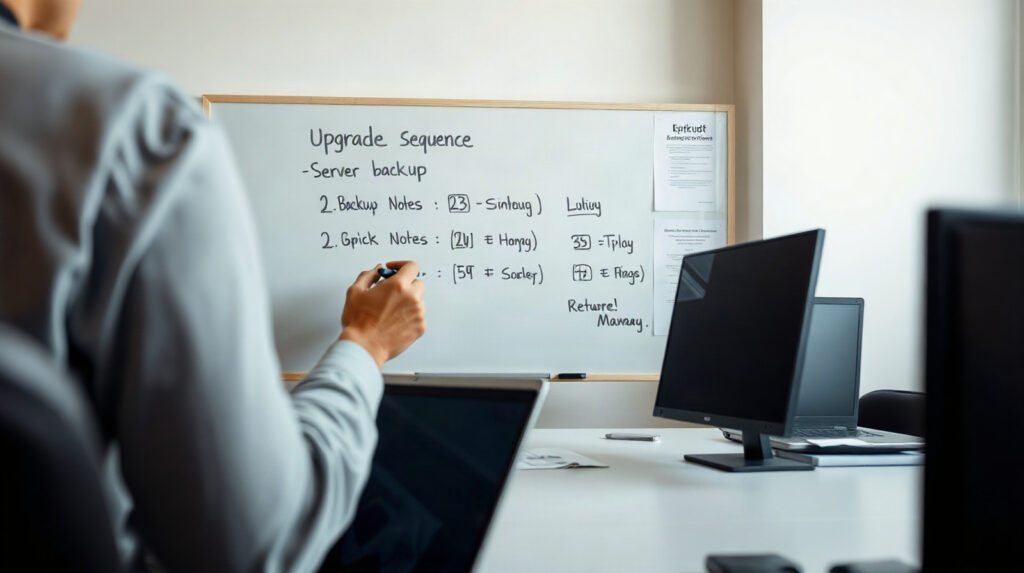
A safe upgrade plan usually follows dependencies rather than convenience. Start by mapping what uses what. For example, a business application may rely on SQL Server, which runs on Windows Server, while staff access the resulting reports through Office on Windows PCs. Upgrading the workstation first will not solve a server compatibility problem.
A typical sequence is:
- Stabilise the current environment. Confirm ownership, collect configuration details, remove unnecessary access and ensure backups are completing.
- Prepare a test environment. Use representative hardware or a virtual machine where appropriate. Copy non-production data or use a supplier-provided test dataset.
- Upgrade infrastructure dependencies. Plan the operating system, server roles, drivers, authentication and storage changes before moving the application or database.
- Upgrade the database or application. Follow the supplier’s migration procedure and test connections, permissions, scheduled tasks, reports and integrations.
- Upgrade a pilot group of PCs. Include users with different roles, Office templates, add-ins, printers and file workflows.
- Roll out in controlled groups. Schedule work outside critical operating periods and keep a rollback or recovery plan for each group.
- Retire or isolate the old system. Preserve required records, remove unnecessary network access and update documentation.
Windows Server 2025 Standard can be considered when an organisation needs a centrally managed Windows server platform for infrastructure services, applications, file workloads or identity-related services. Before selecting it, confirm server hardware, application support, virtualisation requirements, licensing conditions and the migration path for each role.
SQL Server 2025 Standard is a database platform for centralised, structured data and managed SQL workloads. It may fit organisations that need a dedicated Standard edition database environment, but the upgrade plan must include database compatibility, application connection strings, permissions, jobs, reporting, backup restoration and performance testing. Never treat a database engine replacement as only an operating system update.
6. Use backups and tests as upgrade gates
A backup is not a complete safety measure until you know that it can be restored. Before an upgrade, identify the data, configuration and licences required to rebuild the service. Back up databases, application files, shared folders, virtual machines and configuration records according to the system’s recovery requirements.
Define an upgrade gate for each major change:
- A current backup exists and has been checked.
- The responsible person has approved the maintenance window.
- The test plan has named pass or fail criteria.
- Users know what may be unavailable and how to report a problem.
- The rollback or recovery procedure is documented.
- Post-upgrade monitoring has an owner and a review time.
Test real tasks rather than only checking whether the software opens. For Office, open important Word templates, Excel workbooks, presentations, mail merges, macros and add-ins. For a server, test authentication, file access, scheduled jobs, printing and application connections. For SQL Server, test inserts, queries, reports, permissions, backup jobs and the application’s normal workflow.
7. Document the new environment and responsibilities
Close the audit by updating the register. Record the new product, edition, version, installation date, device or server, licence owner and support contact. Note any exceptions, such as a specialist application that must remain on an older platform until its supplier provides a replacement.
Assign responsibilities rather than writing “IT” as the owner. A useful register identifies who monitors vendor lifecycle changes, who approves purchases, who renews or replaces licences, who maintains backups and who receives alerts about failures. For small organisations, one person may hold several responsibilities, but each task should still have a named owner and a backup contact.
Set a recurring review interval based on the size and complexity of the environment. Review new purchases, staff changes, server projects and major application changes as they happen instead of waiting for the next annual audit. Keep old records long enough to explain why a licence, server or application was replaced.
Which Microsoft product may fit the upgrade?
| Περίσταση | Potential fit | Important checks |
|---|---|---|
| Professional business PC needing stronger local security and management features | Windows 11 Pro | Hardware compatibility, device management, encryption policy and application support |
| Users need an installed Office suite for documents, analysis and presentations | Microsoft Office Professional Plus 2024 | Templates, macros, add-ins, file formats, deployment method and licence assignment |
| Core infrastructure, file services or Windows-based server workloads need a managed platform | Windows Server 2025 Standard | Server roles, applications, virtualisation, hardware and migration testing |
| Business applications need a centralised managed SQL database platform | SQL Server 2025 Standard | Application compatibility, database migration, backups, permissions and reporting |
These products address different layers of an environment, so they should not be treated as interchangeable upgrades. Confirm the technical requirement first, then verify the exact edition and licence arrangement. Genuine licences for these and other Microsoft products are available from KEYFORREST with instant electronic delivery. See the current price and product details on the relevant product page before ordering.
Συχνές ερωτήσεις
How do I check unsupported software?
Record the exact product, edition and release, then compare it with the vendor’s current lifecycle information. Also check dependencies such as drivers, add-ins, database engines and server roles. If the version or support status is unknown, classify it as unknown until verified.
Should unsupported software always be upgraded first?
Usually, unsupported systems deserve urgent review, but priority also depends on exposure and business impact. An internet-facing server or essential database normally requires faster action than an isolated, rarely used workstation.
What should a server upgrade checklist contain?
Include hardware and virtualisation details, server roles, applications, dependencies, backups, restore tests, maintenance windows, user communication, test cases, rollback steps, licences and post-upgrade monitoring.
Can I upgrade Windows, Office and SQL Server at the same time?
Sometimes, but combining major changes increases troubleshooting complexity. Test dependencies first and use a staged sequence unless the supplier’s supported migration path requires a coordinated change.
How often should a software lifecycle audit be repeated?
Review the inventory whenever systems or licences change, and schedule a regular formal review. The interval should reflect the number of devices, criticality of services and frequency of software changes.

Σχετικά με τον Marios Chaidousis
Σχετικές δημοσιεύσεις

Λίστα ελέγχου κυβερνοασφάλειας για μικρές επιχειρήσεις: Μια πρακτική ρουτίνα
-
Δημοσιεύτηκε από Marios Chaidousis
Μια επαναλαμβανόμενη ρουτίνα κυβερνοασφάλειας βοηθά μια μικρή επιχείρηση να διαχειρίζεται τους καθημερινούς κινδύνους χωρίς περιττή γραφειοκρατία. Αυτή η λίστα ελέγχου καλύπτει τους καθημερινούς ελέγχους, τις ενημερώσεις, τα αντίγραφα ασφαλείας, τις αναθεωρήσεις πρόσβασης, την εκπαίδευση κατά του ηλεκτρονικού «ψαρέματος» και απλές μετρήσεις.

Προστασία κυβερνοασφάλειας για το οικιακό γραφείο: Ένας πρακτικός οδηγός
-
Δημοσιεύτηκε από Marios Chaidousis
Ένα οικιακό γραφείο συχνά συνδυάζει επαγγελματικά δεδομένα, προσωπικούς λογαριασμούς και κοινόχρηστες συσκευές. Μάθετε πώς να διαχωρίζετε τους κινδύνους, να αναγνωρίζετε το ηλεκτρονικό «ψάρεμα», να ασφαλίζετε τον υπολογιστή σας και να αντιδράτε ψύχραιμα αν υπάρχει υποψία κακόβουλου λογισμικού.

Power Automate Desktop: Build Your First File Workflow
-
Δημοσιεύτηκε από Marios Chaidousis
Build a safe first Power Automate Desktop file workflow by copying files from a test folder into organised subfolders. This practical tutorial explains actions, variables, loops, conditions, logging and testing.

Exchange Server End of Support: Migration Choices
-
Δημοσιεύτηκε από Marios Chaidousis
If your organisation still runs Exchange Server 2013, 2016 or 2019, the next step is more than a software installation. Compare Microsoft 365 and on-premises options, check dependencies and plan a controlled Exchange Server migration.

SQL Server Upgrade Paths for Older Business Databases
-
Δημοσιεύτηκε από Marios Chaidousis
A SQL Server upgrade from older versions is both a technical and licensing decision. This guide helps you assess the current environment, compare SQL Server 2019, 2022 and 2025, and choose a practical migration route.

Office 2016 or 2019 Upgrade Checklist for Small Teams
-
Δημοσιεύτηκε από Marios Chaidousis
Moving a small team from Office 2016 or 2019 is more than installing a newer version. This practical checklist helps you review users, files, add-ins, workflows and business Office licensing before the change.

Windows Server 2012 R2 2016 Upgrade Guide
-
Δημοσιεύτηκε από Marios Chaidousis
A practical Windows Server 2012 R2 2016 upgrade guide covering inventory, migration design, Windows Server 2022 or 2025 selection, testing and CAL decisions. Use it to replace an ageing server platform without overlooking user, device or Remote Desktop licensing.

SQL Server Standard vs Enterprise: Which Do You Need?
-
Δημοσιεύτηκε από Marios Chaidousis
SQL Server Standard and Enterprise serve different planning needs. This comparison helps IT teams separate database capabilities from access licensing and choose the appropriate edition for each workload.

Antivirus Suites Compared: Bitdefender, Norton, ESET or McAfee?
-
Δημοσιεύτηκε από Marios Chaidousis
There is no single antivirus suite that fits every household or small team. Compare device coverage, platforms, management and practical protection needs before choosing Bitdefender, Norton, ESET or McAfee.

Πώς να ελέγξετε αν μια άδεια λογισμικού είναι γνήσια
-
Δημοσιεύτηκε από Marios Chaidousis
Activation is useful, but it does not prove that every software licence is legitimate or suitable for your needs. This checklist explains how to assess the seller, product terms, official account records and warning signs before and after purchase.

Are Digital Software Licence Keys Legal in the EU?
-
Δημοσιεύτηκε από Marios Chaidousis
Digital delivery is generally a method of receiving software, not a separate type of ownership. This EU-oriented guide explains what to check before buying an electronic software licence.

Windows Server Security Checklist for Small IT Teams
-
Δημοσιεύτηκε από Marios Chaidousis
A practical Windows Server security checklist for administrators and managed service providers. Build a manageable baseline for access, updates, backups, monitoring and licensing without adding unnecessary complexity.