
Blog
How to Back Up OneDrive Office Files Safely

OneDrive makes it easy to work on Word, Excel and PowerPoint files from different devices. A document can be available on a laptop, tablet and phone, while AutoSave and version history help you recover recent changes. These features are valuable, but synchronisation is not the same as an independent backup.
If a file is deleted, overwritten, encrypted by malware or changed accidentally, the same change may synchronise to other connected devices. To back up OneDrive Office files safely, combine OneDrive recovery features with a separate copy stored outside the normal sync process. The result is a practical Microsoft 365 file backup routine for everyday work.
First check where your Office files are stored
Before creating a backup, identify the location of each important file. Office documents may be stored in several places:
- OneDrive: Files in the OneDrive folder are synchronised with your Microsoft account and may be available online and locally.
- SharePoint or a shared Microsoft 365 location: Business documents may belong to a team, department or project rather than to one person’s private OneDrive.
- Local folders: Files saved in Downloads, Documents outside OneDrive, an external drive or another folder are not automatically protected by OneDrive.
- Email attachments and application folders: A copy attached to an email may be separate from the current working document and may not contain the latest edits.
In Word or Excel, check the file name and location shown in the application. You can also use File and then Info or Save As to confirm where the document is saved. In Windows File Explorer, a OneDrive path normally appears under the OneDrive folder or organisation name. A cloud icon, green check mark or other status symbol indicates synchronisation status, but it does not prove that an independent backup exists.
Make an inventory of documents that would be difficult or expensive to recreate. Examples include quotations, financial spreadsheets, project reports, customer records, templates, technical calculations and contracts. For a business, include shared folders and files owned by people who may leave the organisation.
Use AutoSave and OneDrive version history correctly
AutoSave regularly saves changes while you work on supported files stored in OneDrive or SharePoint. It reduces the risk of losing recent edits after a power failure, application problem or accidental closure. It is especially useful when several people work on the same document through Microsoft 365.
AutoSave is not a complete backup because it normally updates the working file. If unwanted changes are saved, the current document can still be wrong. AutoSave also does not protect every file in every location. A document saved only on a local drive, removable media or an unsupported application workflow may not receive the same protection.
Version history provides earlier versions of many files stored in OneDrive or SharePoint. It can help when a document was overwritten, edited incorrectly or changed during collaboration. To use it, open the file location in OneDrive or the relevant Microsoft 365 file view, select the file, and choose the version history option. Review the date and version before restoring it. If you are unsure, download or copy the earlier version first rather than immediately replacing the current file.
Version history is most useful for recent mistakes. It should not be treated as a permanent archive of every document ever created. Available versions and recovery options can depend on the service, account, file location and organisational settings. Check the current Microsoft documentation and your organisation’s retention settings when a file is important.
Create a separate copy of important files
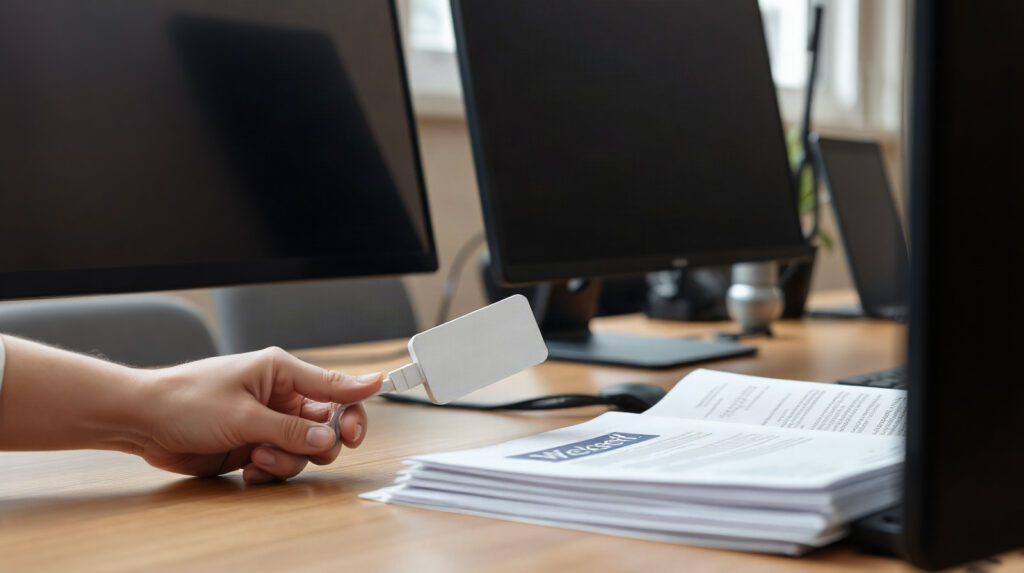
An independent copy should not depend on the same OneDrive synchronisation process as the original. A simple routine can use an external drive, a separate storage system or another backup service. The right choice depends on how many files you have, how often they change and whether multiple people need access.
- Select the source: Include the OneDrive folders containing important Office files, plus relevant local folders and shared project locations.
- Set a schedule: Back up frequently enough for the work you can afford to repeat. Daily copies may suit active business documents; less frequently changed personal files may need a different schedule.
- Use a separate destination: Store the copy on a drive or service that is not continuously synchronised with the working folder. A backup destination permanently connected and writable by every user is less independent.
- Keep more than one recovery point: Retain dated copies so that you can return to a clean version from before an accidental deletion or unwanted change.
- Test restoration: Open a copied Word document, Excel workbook and PowerPoint presentation from the backup. A backup that has never been tested may contain incomplete or unusable files.
For a small office, one practical approach is to export or copy the most important OneDrive folders to an encrypted external drive, then disconnect the drive after the backup. Keep another copy in a different location if the documents are critical. For a larger team, use a managed backup system that can protect Microsoft 365 data independently and provide search, retention and restoration controls. OneDrive’s own synchronisation should remain available for everyday work, but it should not be the only copy.
Recover deleted, overwritten or damaged Office documents
Use the least destructive recovery method first. Avoid creating many new edits in the affected file until you know which version you need.
When recent edits are wrong
Open version history for the Word, Excel or PowerPoint file. Compare the earlier versions by date and, where possible, content. Restore the correct version or save a copy under a new name. Saving a new copy is safer when colleagues may still be using the current version.
When the file was deleted
Check the OneDrive or SharePoint recycle bin associated with the file location. Select the correct document and restore it to its original location if it is available. If the file was in a shared business location, the relevant site or organisation administrator may need to check the appropriate recycle bin or recovery controls.
Recycle bins are designed for recovery after deletion, not as a long-term archive. The time a deleted file remains recoverable can vary by service and account configuration, so act promptly and confirm the current Microsoft rules for your environment.
When the file is damaged or affected by malware
Disconnect the affected device from the network if you suspect malware, following your organisation’s security procedure. Do not allow an active threat to continue synchronising changes. Ask an administrator or security professional to assess the device, then recover a clean file from a dated independent backup or an earlier cloud version.
Do not overwrite your only clean copy while investigating. If the document contains important financial, customer or project information, preserve the affected file and record what happened before restoring the working version.
Protect Word and Excel files before recovery is needed
Backup reduces data loss, but account security helps prevent unauthorised changes in the first place.
- Use a unique password: Do not reuse the Microsoft account password on other websites.
- Enable multifactor authentication where available: This adds another verification step when someone signs in from an unfamiliar context.
- Review sharing permissions: Remove old links and access for people who no longer need a document. Be careful with links that allow editing.
- Keep devices protected: Apply operating system and Office updates, use reputable security software and lock the screen when leaving the device.
- Separate personal and business storage: Do not place company documents in a personal account simply because it is convenient.
- Control administrator access: In a business, document who manages Microsoft 365 accounts, shared locations and recovery procedures.
For shared work, agree on a basic naming and folder convention. For example, keep the current working file in the project folder, use a clear status such as “approved” or “for review”, and retain final exports separately. This does not replace backup, but it makes it easier to identify the correct file during recovery.
Which Microsoft 365 option fits the situation?
| Περίσταση | Suitable option | Recommendation |
|---|---|---|
| One person needs Office on a personal device and wants account-based access | Microsoft 365 Personal | Suitable for individual Word, Excel and other Office work. Create a separate backup for documents that matter. |
| One employee needs Office and connected cloud productivity services for business work | Microsoft Office 365 Business Premium | Suitable for business workflows involving reports, budgets, proposals and shared working files. Establish an organisation-owned backup and recovery process. |
| Several people edit shared project documents | Business-focused Microsoft 365 environment | Define ownership, sharing permissions and recovery responsibilities. Do not rely on one employee’s personal OneDrive. |
| Documents must be retained independently of everyday sync | Microsoft 365 plus external backup storage or a separate backup service | Use dated recovery points and test restoration regularly. |
Microsoft 365 Personal is aimed at an individual user and is available across Windows, macOS, Android and iOS according to the product information. Microsoft Office 365 Business Premium is intended for organisations and supports familiar Office workflows with connected cloud services. The licence that fits your work depends on whether the files are personal or business-owned, how many people need access and who must manage recovery.
A practical backup checklist
- List your important Word, Excel, PowerPoint and other Office files.
- Check whether each file is in OneDrive, a shared business location or only on a local device.
- Turn on and verify AutoSave for supported cloud-stored documents.
- Use version history when you need to undo an unwanted change.
- Copy important folders to a separate backup destination on a regular schedule.
- Keep dated recovery points rather than only one constantly updated copy.
- Protect the account with a unique password, multifactor authentication and careful sharing settings.
- Test the backup by restoring files and opening them in Office.
- Record who is responsible for recovery in a shared business environment.
Genuine Microsoft licences are available from KEYFORREST with instant electronic delivery. You can review the current product details and price on the relevant product page, then combine the software with a backup routine suited to your files.
Συχνές ερωτήσεις
Is OneDrive itself a backup?
OneDrive provides cloud storage, synchronisation and useful recovery features, but synchronisation alone is not an independent backup. A deletion or unwanted change may synchronise across devices, so keep a separate copy of important files.
Does AutoSave protect every Word or Excel file?
No. AutoSave is mainly useful for supported files stored in OneDrive or SharePoint. Files saved only locally or handled outside the supported Office workflow may not receive the same protection.
Can I recover an overwritten Office document?
Try version history first. If the file is not available there, look for a dated independent backup or another authorised copy. Avoid making further changes until you identify the correct version.
How often should I back up OneDrive Office files?
Choose a schedule based on how much work you could afford to repeat. Active business files may need daily or more frequent protection, while less frequently changed files may need less frequent copies. Test the schedule by restoring a file.
Should shared business files be stored in one employee’s OneDrive?
Usually, shared business documents should have clear organisational ownership and access controls. Use the appropriate shared Microsoft 365 location and ensure more than one authorised person understands the recovery process.

Σχετικά με τον Marios Chaidousis
Σχετικές δημοσιεύσεις

Λίστα ελέγχου κυβερνοασφάλειας για μικρές επιχειρήσεις: Μια πρακτική ρουτίνα
-
Δημοσιεύτηκε από Marios Chaidousis
Μια επαναλαμβανόμενη ρουτίνα κυβερνοασφάλειας βοηθά μια μικρή επιχείρηση να διαχειρίζεται τους καθημερινούς κινδύνους χωρίς περιττή γραφειοκρατία. Αυτή η λίστα ελέγχου καλύπτει τους καθημερινούς ελέγχους, τις ενημερώσεις, τα αντίγραφα ασφαλείας, τις αναθεωρήσεις πρόσβασης, την εκπαίδευση κατά του ηλεκτρονικού «ψαρέματος» και απλές μετρήσεις.

Λίστα ελέγχου ασφάλειας δεδομένων GDPR για μικρές επιχειρήσεις
-
Δημοσιεύτηκε από Marios Chaidousis
Μια πρακτική, μη νομική λίστα ελέγχου ασφάλειας δεδομένων GDPR για μικρές επιχειρήσεις. Χρησιμοποιήστε την για να βελτιώσετε τον έλεγχο πρόσβασης, τα email, τα αρχεία, τις συσκευές, τα αντίγραφα ασφαλείας και την ετοιμότητα αντιμετώπισης περιστατικών.

Πώς να ασφαλίσετε την εξ αποστάσεως εργασία σε μια μικρή επιχείρηση
-
Δημοσιεύτηκε από Marios Chaidousis
Η ασφάλεια της εξ αποστάσεως εργασίας δεν απαιτεί μια μεγάλη ομάδα ασφάλειας επιχειρησιακού επιπέδου. Αυτή η πρακτική λίστα ελέγχου βοηθά τις μικρές επιχειρήσεις να προστατεύουν λογαριασμούς, φορητούς υπολογιστές, οικιακά δίκτυα, αρχεία και απομακρυσμένη πρόσβαση.

Πώς να ρυθμίσετε με ασφάλεια τις εξαιρέσεις του antivirus
-
Δημοσιεύτηκε από Marios Chaidousis
Οι εξαιρέσεις antivirus μπορούν να επιλύσουν ένα πραγματικό ψευδώς θετικό αποτέλεσμα, όμως ένας υπερβολικά ευρύς κανόνας μπορεί να δημιουργήσει μια μη προστατευμένη διαδρομή για κακόβουλο λογισμικό. Αυτός ο πρακτικός οδηγός εξηγεί πώς να επαληθεύετε ένα αρχείο, να προσθέτετε την απολύτως απαραίτητη εξαίρεση και να την καταργείτε όταν ο λόγος δεν ισχύει πλέον.

Business Antivirus vs Home Antivirus: What Changes?
-
Δημοσιεύτηκε από Marios Chaidousis
Business and household antivirus products solve different management problems. Compare users, devices, file servers and security policies before choosing protection for a small business or home.

Πώς μπορούν τα μικρά γραφεία να προετοιμαστούν για ransomware
-
Δημοσιεύτηκε από Marios Chaidousis
Small offices can reduce ransomware risk without building a large security department. This practical playbook covers prevention, Microsoft 365 accounts, device protection, backups and recovery.

Windows 7 and 8.1: Safe Upgrade Options
-
Δημοσιεύτηκε από Marios Chaidousis
Windows 7 and Windows 8.1 computers can still run important software and peripherals, but unsupported systems need a deliberate plan. Use this checklist to decide whether to upgrade, replace, or isolate an older PC.

How to Add Proofing Languages in Microsoft 365
-
Δημοσιεύτηκε από Marios Chaidousis
Need to write in more than one European language? This guide explains how to add proofing language in Microsoft 365, set defaults, switch dictionaries, and solve common spell-check problems.

Exchange Server End of Support: Migration Choices
-
Δημοσιεύτηκε από Marios Chaidousis
If your organisation still runs Exchange Server 2013, 2016 or 2019, the next step is more than a software installation. Compare Microsoft 365 and on-premises options, check dependencies and plan a controlled Exchange Server migration.

Office 2016 or 2019 Upgrade Checklist for Small Teams
-
Δημοσιεύτηκε από Marios Chaidousis
Moving a small team from Office 2016 or 2019 is more than installing a newer version. This practical checklist helps you review users, files, add-ins, workflows and business Office licensing before the change.

Windows Server 2012 R2 2016 Upgrade Guide
-
Δημοσιεύτηκε από Marios Chaidousis
A practical Windows Server 2012 R2 2016 upgrade guide covering inventory, migration design, Windows Server 2022 or 2025 selection, testing and CAL decisions. Use it to replace an ageing server platform without overlooking user, device or Remote Desktop licensing.

Τέλος υποστήριξης Windows 10: Τι να κάνετε το 2026
-
Δημοσιεύτηκε από Marios Chaidousis
Το τέλος υποστήριξης των Windows 10 έχει αλλάξει την απόφαση για κάθε υπολογιστή που εξακολουθεί να χρησιμοποιείται. Αυτός ο πρακτικός οδηγός εξηγεί πώς να αξιολογήσετε το υλικό, να επιλέξετε Windows 11 και να προγραμματίσετε αναβάθμιση ή αντικατάσταση το 2026.