
Blog
Configurer Webroot sur un PC gaming : guide pour Windows 11
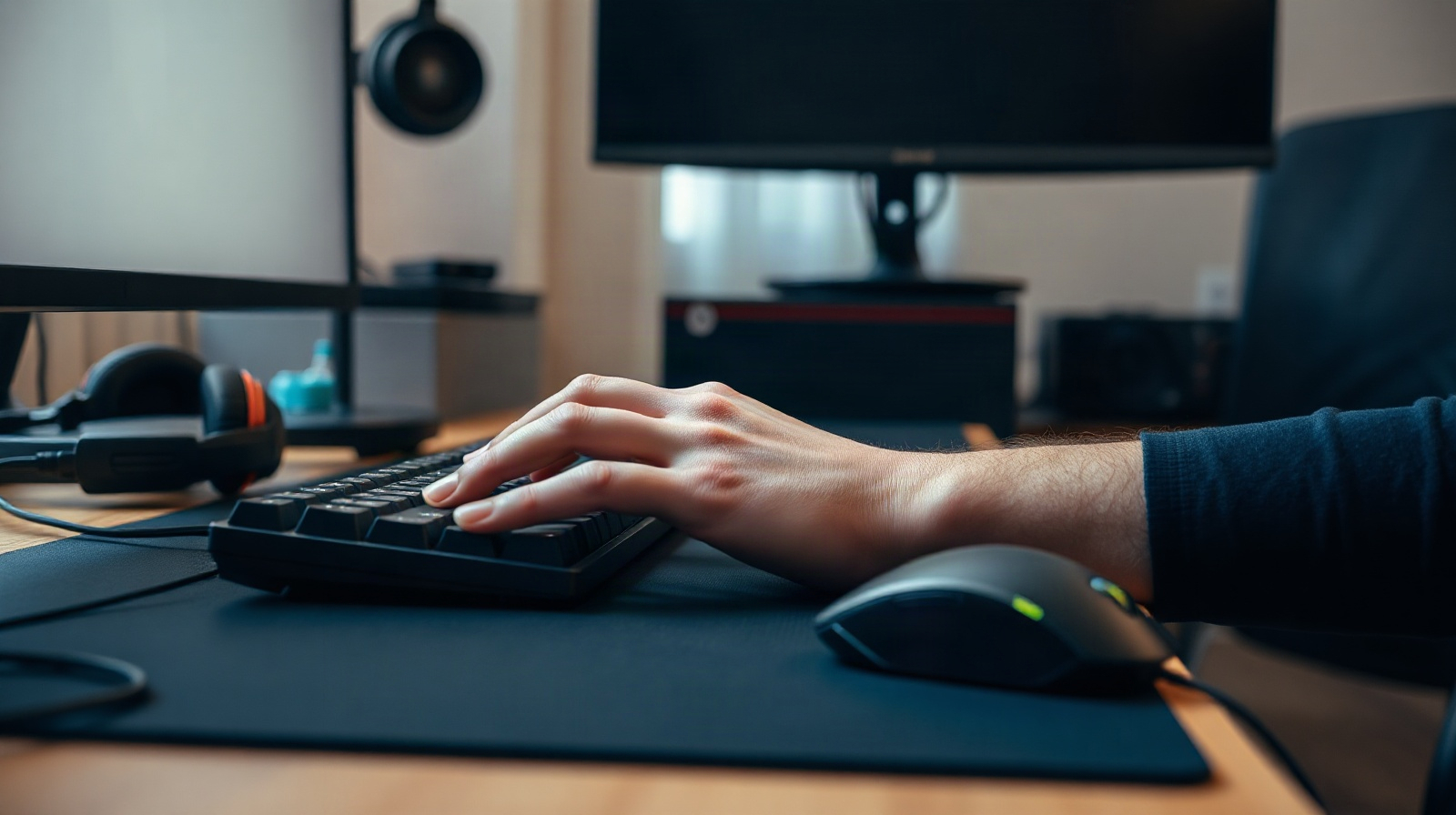
A gaming PC is also a computer for online accounts, payment details, personal files, screenshots, recordings and saved progress. Security therefore matters, but antivirus software should not become the largest source of interruptions while you are playing, streaming or benchmarking.
This Webroot setup for gaming PC guide focuses on a practical balance: install protection correctly, keep Windows and the game ecosystem usable, and investigate problems instead of disabling security globally. The product is designed for Windows PCs and is available as a one-year licence for one device. It is a suitable choice for a gamer who wants a recognised antivirus product with a gaming-oriented product name and a security setup that does not need constant manual attention.
Why gamers need a low-interruption security setup
A modern gaming computer can run several software layers at once: Windows 11, a game launcher, anti-cheat components, graphics drivers, voice chat, streaming tools, browser tabs and hardware utilities. A security alert at the wrong moment can be confusing, especially when it appears during a game update or the first launch of a newly installed title.
Webroot Antivirus Protection for PC Gamers gives this PC a clear security role. It helps protect the computer used for games, launchers, online activity and files, rather than treating gaming as a reason to remove protection. This is particularly relevant if the same device is used for:
- Logging in to game stores, launchers and online services.
- Managing payment information and account credentials.
- Downloading game installers, patches, mods or configuration tools.
- Recording gameplay and storing screenshots or personal documents.
- Running voice, streaming or remote-support applications alongside games.
Performance is not determined by antivirus software alone. Game resolution, frame rate targets, graphics settings, background applications, storage speed, drivers and thermal limits can have a greater effect. A sensible security configuration reduces unnecessary interruptions, but it cannot make an underpowered system perform like a faster one.
Before installing Webroot on Windows 11
Prepare the computer before starting the Webroot installation. This makes it easier to identify the cause of a problem if the game or launcher behaves differently afterwards.
- Confirm the operating system. The product is for Windows PCs. On Windows 11, open the system information area and confirm that you are installing it on the intended gaming device.
- Save active work. Close games, launchers, installers and applications that are currently writing files. Do not interrupt a game update halfway through.
- Review existing antivirus software. Two real-time antivirus products can conflict or duplicate security checks. Check the other product’s own removal or uninstall process before installing Webroot. Windows security settings may then report the active protection status.
- Use the correct licence details. Keep the activation information available and make sure the licence is intended for one Windows device, as specified for this product.
- Update Windows and drivers through their normal channels. A pending operating system update or graphics-driver installation can cause restarts and launch problems that are unrelated to Webroot.
- Create a simple baseline. Before installation, note whether the game launches normally, whether frame rates are stable and whether a particular launcher already displays warnings. This gives you something to compare later.
Avoid downloading unofficial “optimised” antivirus packages, modified installers or scripts that promise to disable security while preserving performance. They can change Windows settings in ways that are difficult to audit and may expose the very accounts and files you are trying to protect.
Install Webroot and complete the first security checks
Use the product information and activation instructions supplied with your genuine licence. Start the installer with the gaming PC connected to the internet, then follow the on-screen steps. The exact wording and layout can change between product versions, so use the controls shown in your installed Webroot application rather than relying on an old screenshot.
- Run the installer. Allow the installation to complete and approve the Windows permission request when it is clearly associated with the Webroot installer.
- Activate the product. Enter the supplied key or activation details carefully. Keep the confirmation information in a secure place for future reinstallation.
- Restart if requested. A restart lets Windows load the security components cleanly before you begin testing games.
- Open Webroot once installation is complete. Check that the application reports an active installation and that there are no unresolved setup messages.
- Run the first recommended security check. Let the initial check finish before launching a demanding game. The first check may examine files that have not been assessed on this installation.
- Test one normal gaming session. Start a trusted launcher and one regularly used game. Observe launch time, notifications and game behaviour rather than changing several settings at once.
Do not judge performance solely from the first minutes after installation. A game may be compiling shaders, applying an update or rebuilding a cache. Compare like with like: use the same game, graphics settings and background applications when checking whether Webroot changes the experience.
Configure notifications and scans around gaming
Webroot gaming mode is a useful search term, but do not assume that every Webroot product, release or account configuration contains a dedicated switch with that exact name. If your installed application provides a gaming, silent or notification-control option, read its description before enabling it. The goal should be fewer non-essential interruptions, not an unrestricted security bypass.
Use this order when adjusting the installation:
- Start with notification controls. Reduce non-critical messages during a gaming session if Webroot provides that option. Keep important security warnings visible.
- Use scan scheduling carefully. If the application allows scheduled checks, place them when the PC is normally idle rather than during a regular multiplayer session, stream or tournament.
- Keep protection active while gaming. Do not disable antivirus protection simply because a game is running. A title downloaded from an unfamiliar source, a mod installer or a new utility deserves more scrutiny, not less.
- Review update timing. Avoid changing security or game settings while a competitive match or important recording is in progress. Apply updates before a session and restart when requested.
- Check Windows notifications too. A Windows 11 notification, launcher message or driver prompt may be mistaken for an antivirus alert. Identify the application that generated each message before changing settings.
There is no universal “maximum FPS” setting for antivirus. Webroot antivirus performance should be assessed by observing the whole system: frame-time consistency, input response, loading behaviour and background disk or processor activity. A small change in average frame rate may be less important than brief stutters, but either result needs a controlled comparison.
Handle false positives and game launch issues safely
A game, launcher or anti-cheat component may trigger a security warning for several reasons: a newly released file, a program update, unusual packaging or behaviour that resembles unwanted software. A warning is not proof that the file is malicious, but it should not be dismissed without checking.
Use this troubleshooting sequence:
- Record the alert. Note the detected file, application path and action Webroot took. A screenshot can help, but do not share licence keys or personal account data.
- Confirm the source. Check whether the game came from its normal official launcher or another source you trust. Be especially cautious with cracked software, unknown mod packages and “performance booster” utilities.
- Update the affected software. Install the latest version from the publisher or launcher. A corrected release may resolve the detection or launch issue.
- Check the publisher’s support information. Look for a documented compatibility issue or a recommended file verification process.
- Verify the game files using the launcher. Use the launcher’s own repair or verification feature when available. This is safer than downloading replacement executable files from a forum.
- Restore or allow only after verification. If the file is confirmed as legitimate and Webroot provides a controlled exception or allow-list workflow, apply it to the specific trusted file or folder only. Review the scope and duration.
- Test again and document the change. If the issue remains, remove the exception or return the setting to its previous state and seek support from the software publisher or security vendor.
Do not add the entire game library, Downloads folder, user profile or system drive to exclusions as a first response. Broad exclusions can allow a malicious file to run unnoticed. Do not exclude all anti-cheat software merely because the game fails to start; identify the exact component and the reason for the warning first.
If a game will not launch, also check ordinary causes: a pending restart, damaged game files, a failed launcher update, graphics-driver changes, insufficient storage or another overlay. Disable one optional overlay at a time for testing. This avoids blaming Webroot for a problem caused by a launcher or hardware utility.
A simple maintenance routine for a gaming PC
Once Webroot is installed, maintenance should be predictable rather than disruptive.
- Weekly: Review security notifications, complete pending restarts and check that your main launcher and games update through their normal channels.
- Before a major release: Update Windows, graphics drivers and the game in advance. Allow any Webroot update or recommended check to finish before an important session.
- After installing a mod or utility: Consider its source, publisher and permissions. Treat tools that request broad administrator access or promise impossible performance gains with caution.
- Monthly: Review exclusions, allowed applications and notification settings. Remove entries for uninstalled games, old launchers or temporary tests.
- After a hardware or operating system change: Test a normal game session and check that Webroot still reports an active installation.
Keep backups of important documents, recordings and irreplaceable game-related files. Antivirus protection is not a substitute for backups, account recovery methods or careful password management. Use unique passwords and appropriate multi-factor authentication where the service supports it.
Which setup fits which gaming PC?
| Situation | Approche pratique | What to avoid |
|---|---|---|
| Windows 11 home gaming PC | Install Webroot, complete the first check and use notification controls to reduce non-critical interruptions. | Disabling protection whenever a game starts. |
| Gaming PC used for work or study | Keep game files, personal documents and online accounts under the same active security setup; review exclusions regularly. | Excluding the whole user profile or system drive. |
| PC used for streaming or recording | Schedule checks for idle periods and test notifications before a live session. | Hiding every alert without checking its severity. |
| PC with a suspected false positive | Record the file, verify its source, repair through the official launcher and use a narrow exception only if justified. | Downloading an unofficial replacement or blanket allow-listing a folder. |
Webroot Antivirus Protection for PC Gamers is a Windows product with a one-year key for one device. It is a sensible fit when you want antivirus coverage for a dedicated gaming PC and its related online activity. It does not replace safe downloading, game-platform account security, backups, Windows maintenance or troubleshooting of graphics and hardware problems.
Genuine Webroot licences are available from KEYFORREST with instant electronic delivery. Check the current product page for the latest licence details before purchase.
Foire aux questions
Does Webroot Antivirus Protection for PC Gamers work on Windows 11?
The product is specified for Windows PCs, so it is intended for a Windows gaming computer. Complete installation on the intended device and follow the compatibility information shown by the installer.
Does Webroot have a gaming mode?
The available controls depend on the installed product version. If Webroot shows a gaming, silent or notification option, review what it changes before enabling it. Do not assume that it disables every warning or pauses all protection.
Should I exclude my entire game library?
No. Broad exclusions weaken coverage unnecessarily. Investigate the exact file and source first, then use a narrow, reversible exception only when the file is verified as legitimate and the product provides that control.
Will Webroot reduce gaming performance?
Any security software can use system resources during checks or updates, but the effect depends on the PC and workload. Compare the same game and settings before and after installation, and schedule optional checks for idle periods.
What should I do if a game stops launching after installation?
Record any Webroot alert, verify the game files through the official launcher, check for updates and restart Windows if requested. If a verified file is blocked, investigate a specific controlled exception instead of disabling protection globally.

À propos de Marios Chaidousis
Articles associés

Comment optimiser Windows 11 pour les performances de jeu
-
Publié par Marios Chaidousis
A safe Windows 11 gaming workflow can remove avoidable bottlenecks without relying on risky registry hacks. Follow these reversible steps to improve consistency, reduce background activity and troubleshoot frame-rate problems.
Le meilleur antivirus léger pour un PC gaming
-
Publié par Marios Chaidousis
Le meilleur antivirus pour un PC gaming doit protéger les comptes, les téléchargements et les fichiers personnels sans provoquer d’interruptions inutiles pendant les parties. Cette comparaison examine Webroot, Bitdefender et Norton selon les priorités pratiques des joueurs sous Windows 11.

Comment changer d’antivirus sans interruption de protection
-
Publié par Marios Chaidousis
Changer d’antivirus dans un foyer ne doit pas créer de période sans protection. Suivez une procédure planifiée pour choisir la couverture, installer le remplacement, supprimer l’ancien produit et vérifier chaque appareil.

Bitdefender Family Pack ou Norton 360 Deluxe pour les familles
-
Publié par Marios Chaidousis
Bitdefender Family Pack et Norton 360 Deluxe couvrent tous deux les principales plateformes utilisées dans les foyers européens, mais leurs limites d’appareils sont très différentes. Cette comparaison explique quelle licence convient à une petite famille, à un foyer plus nombreux et à une maison comptant de nombreux appareils personnels.

Windows 11 Home pour les familles : guide d’achat
-
Publié par Marios Chaidousis
Ce guide d’achat de Windows 11 Home aide les familles à choisir la licence adaptée à un PC familial partagé. Il couvre le travail quotidien, Microsoft 365, la sécurité, le contrôle parental et la préparation de l’installation.

Comment préparer un PC Windows 10 pour Windows 11 Home
-
Publié par Marios Chaidousis
Vous prévoyez de passer de Windows 10 à Windows 11 Home ? Utilisez cette liste de contrôle prudente pour protéger vos fichiers personnels, vérifier la compatibilité et préparer le PC avant l’installation.
Comment activer Windows 10 avec une clé de produit
-
Publié par Marios Chaidousis
Suivez ce guide pratique pour activer Windows 10 avec une clé de produit authentique ou une licence numérique. Nous expliquons également les erreurs d’activation, l’activation par téléphone et la transition vers Windows 11.