
Blog
Windows Server RDS CALs for Training Centres

Training centres, universities and schools often need to provide the same applications to many learners without installing and maintaining every application on every classroom PC. A Windows Server running Remote Desktop Services (RDS) can centralise access to applications, files and teaching environments. Learners connect from classroom computers or other approved devices while the software runs in a managed server environment.
Windows Server RDS CALs for training centres are the licences that authorise users or devices to connect to Remote Desktop Services. Choosing the right type depends less on the number of learners enrolled and more on how people and equipment actually use the lab. A fixed classroom with many different learners has a different licensing pattern from a centre where each instructor and student connects from a personal laptop.
This guide explains the planning questions to answer before selecting RDS licensing for computer labs. It also clarifies what an RDS CAL does, what it does not include, and when a Windows Server and RDS CAL bundle may be practical.
What Remote Desktop Services changes in a classroom environment
With RDS, a learner uses a remote session to work with applications installed on a Windows Server. The classroom PC can act mainly as the access point, while the server provides the application environment and access to centrally managed files. This can simplify software updates, configuration and support when many workstations need the same tools.
A training centre might use this model for:
- Office applications used in administration, business and digital-skills courses.
- Centralised teaching environments where every learner needs the same settings and files.
- Remote access to a classroom application outside scheduled lessons.
- Short courses where different groups use the same shared classroom PCs on different days.
- Server-based access to selected engineering or design applications, subject to the application vendor’s own licensing and technical requirements.
RDS does not automatically provide the Windows Server operating system, the underlying server hardware, network capacity or application licences. It also does not make every CAD application suitable for remote use. Three-dimensional modelling, rendering and other graphics-intensive work may require careful testing of server performance, graphics support, storage and network quality. Application licensing must be checked separately, especially where a product has named-user, device-based or concurrent-use conditions.
RDS licensing is therefore one part of a wider design. Before purchasing, the centre should document the required applications, the number of simultaneous sessions, the available devices, the network arrangement and the way users will be identified.
RDS User CALs and Device CALs: the planning question
Every user or device that connects to Remote Desktop Services on Windows Server 2025 needs an appropriate Windows Server 2025 RDS CAL. The choice is between a User CAL and a Device CAL:
| Licence type | What it covers | Often suitable when | Planning question |
|---|---|---|---|
| RDS User CAL | One person using RDS from any number of devices | Instructors, staff or learners use classroom PCs, laptops or home devices | Can the centre identify and manage each person who needs access? |
| RDS Device CAL | One device used by any number of people | Many learners share a fixed set of classroom PCs | Will several different people use the same managed computers? |
The key distinction is not simultaneous use. A User CAL follows the authorised person across their devices, while a Device CAL is associated with the authorised computer or other access device. A centre should therefore count the relevant users or devices according to its real access model, rather than simply counting the number of accounts or sessions open at one time.
For example, suppose an instructor teaches from a classroom PC, a work laptop and occasionally a home computer. If the centre needs to support that person across those devices, a User CAL may match the working pattern. In contrast, a lab with 24 permanently installed PCs may be better aligned with Device CALs when hundreds of learners use those same PCs in different lessons.
A mixed environment may also exist. Staff and instructors might use User CALs, while a fixed classroom uses Device CALs. The centre should plan this arrangement carefully and confirm that the selected licence types match the organisation’s licensing records and administration process.
How to estimate access patterns in a training centre
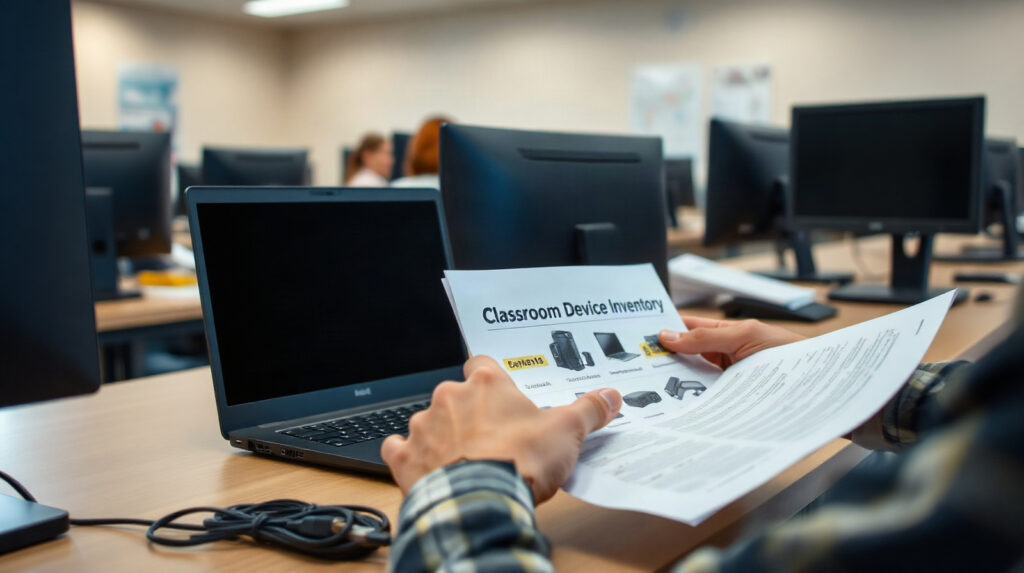
Start with an inventory, not a guess. Separate the people who need access from the equipment through which they connect.
- List the access groups. Record instructors, permanent staff, enrolled learners, visiting learners and external course participants. Include people who need access outside classroom hours.
- List the access devices. Count fixed classroom PCs, library computers, workshop terminals, thin clients, laptops and other devices that may connect to RDS.
- Describe the normal workflow. Note whether one person uses several devices or whether many people share the same device during different lessons.
- Separate teaching and administration. Staff may require regular access from different devices, while learners may use only a fixed lab. These groups may lead to different licensing considerations.
- Check remote access. A learner connecting from a personal laptop is still using a user or device access path that must be covered. Do not assume that a classroom-only plan covers later remote study automatically.
- Allow for planned growth. Consider new courses, additional classrooms and changes from fixed PCs to bring-your-own-device learning.
Consider two common examples:
Example 1: shared classroom PCs. A centre has 30 desktop computers in two rooms. Each day, different groups use the same PCs, and students do not normally connect from home. A Device CAL model may be a natural starting point because the access points are fixed and shared. The centre should still confirm which devices are permitted to connect and whether staff use other devices.
Example 2: mobile learners. A university gives instructors and learners access to a central teaching environment from classroom PCs, personal laptops and sometimes home computers. A User CAL model may be easier to align with the people who need access, because one person can use the service from multiple devices. The centre needs a reliable way to identify those users and keep its records current.
These are planning examples, not a substitute for reviewing the organisation’s complete licensing position. If the access pattern is changing or includes several environments, ask the Microsoft licensing adviser or procurement team to validate the final selection.
RDS licensing for computer labs and remote learning
Remote Desktop Services can help standardise a computer lab, but licensing should be considered alongside classroom operations.
Shared classroom PCs: Device CALs may be convenient when the equipment is fixed, centrally managed and used by successive groups. This approach can reduce the need to track every short-course participant as a separate access point. The centre must maintain an accurate device inventory and account for any additional devices used by instructors or administrators.
Personal laptops: User CALs may fit better when the same learner or instructor connects from multiple devices. This is especially relevant for blended teaching, where a person moves between a classroom, a study area and home. The centre should decide which accounts are eligible for access and how leavers or expired course accounts are removed.
Short courses and rotating groups: The number of enrolled learners may be much higher than the number of available computers. For Device CAL planning, the important figure is generally the covered access equipment rather than the total number of people who use it. For User CAL planning, the important figure is the people who need access, even if they connect at different times.
CAD and engineering courses: RDS can provide a central application environment, but it does not include AutoCAD, Revit, Civil 3D, Inventor or other engineering software licences. Each application has its own licensing and technical requirements. Graphics-heavy applications also need performance testing before the centre commits to a remote delivery model. A successful RDS deployment requires more than simply installing the programme on the server.
Security and administration: Centralising applications can make patching and configuration more consistent, but it does not remove the need for account management, access controls, backups, endpoint security and an appropriate network design. Training centres should also consider what learner data is stored in sessions and files, and restrict access to the resources needed for each course.
When a Windows Server and RDS CAL bundle may be useful
A centre setting up a new server environment may prefer to purchase the operating system and access licences together. The Windows Server 2025 Standard + 10 RDS CALs product includes Windows Server Standard 2025 and 10 Windows Server 2025 RDS CALs. The RDS CALs can be supplied as User or Device CALs; User CALs are supplied by default, and the required type can be specified at checkout.
This bundle may suit a small training room, a pilot deployment or an organisation that needs up to 10 RDS access licences and does not already have Windows Server licensing for the planned server. It combines the server operating system with the RDS access component, but the centre still needs to check its wider requirements.
In particular, each user or device connecting to RDS also needs a standard Windows Server 2025 CAL in addition to the RDS CAL. The 10 RDS CALs in the bundle do not replace those standard Windows Server CALs. The centre should also verify server hardware, installation requirements, application licensing and the number of sessions it expects to support.
For an organisation that already has Windows Server 2025 and the required standard Windows Server CALs, purchasing standalone Windows Server 2025 RDS CALs may be more appropriate. The standalone product allows the centre to choose User or Device RDS CALs and select the required quantity. User and Device CALs are available at the same price per CAL; check the current product page for the current price.
Questions to resolve before purchasing
- Will most connections come from shared fixed PCs, or will people use several devices?
- How many users need access, and how many devices will connect?
- Will instructors and administrators connect from devices outside the classroom?
- Are remote or home connections part of the course design?
- Does the organisation already have Windows Server 2025 and standard Windows Server CALs?
- Are the required office, security and CAD applications licensed for the planned server-based use?
- How many concurrent sessions must the server support, and has the technical environment been tested?
- Who will maintain user accounts, device records and licence documentation?
Answering these questions before ordering helps avoid the most common planning mistake: choosing a quantity based only on the number of classroom seats. The correct decision depends on whether the centre’s access model is person-centred, device-centred or a documented combination of both.
Domande frequenti
Does every learner need an RDS CAL?
Every user or device that connects to Remote Desktop Services on Windows Server 2025 needs an appropriate RDS CAL. Whether the centre counts users or devices depends on the selected licence type and the actual access model.
Can one RDS User CAL cover several devices?
Yes. A User CAL covers one person using RDS from any number of devices. This can suit instructors or learners who move between classroom PCs, laptops and other approved devices.
When are Device CALs useful for a school or training centre?
Device CALs can fit a fixed lab where many different learners use the same managed computers. One Device CAL covers one device used by any number of users, subject to the applicable licensing terms and the centre’s access records.
Does an RDS CAL include Windows Server and application licences?
No. An RDS CAL authorises access to Remote Desktop Services. It is in addition to the standard Windows Server CAL, and applications such as Office or CAD software require their own licences and permissions.
Where can we buy genuine Windows Server 2025 RDS CALs?
Genuine Windows Server 2025 RDS CALs and the Windows Server 2025 Standard + 10 RDS CALs bundle are available from KEYFORREST with instant electronic delivery. Select User or Device CALs according to the centre’s documented access model, and see the current price on the relevant product page.

Informazioni su Marios Chaidousis
Articoli correlati

Installa Office LTSC 2024 senza le app Microsoft 365
-
Pubblicato da Marios Chaidousis
Questa guida spiega come installare Office LTSC 2024 come distribuzione desktop controllata e perpetua, senza lasciare sul computer app Microsoft 365 sovrapposte. Copre preparazione, pulizia, configurazione, selezione della lingua, attivazione e verifica.

Come configurare in sicurezza le esclusioni dell'antivirus
-
Pubblicato da Marios Chaidousis
Le esclusioni dell'antivirus possono risolvere un falso positivo reale, ma una regola troppo ampia può creare un percorso non protetto per il malware. Questa guida pratica spiega come verificare un file, aggiungere l'esclusione più restrittiva possibile e rimuoverla quando il motivo non è più valido.

Business Antivirus vs Home Antivirus: What Changes?
-
Pubblicato da Marios Chaidousis
Business and household antivirus products solve different management problems. Compare users, devices, file servers and security policies before choosing protection for a small business or home.

Power BI Pro: Share Reports Without Losing Control
-
Pubblicato da Marios Chaidousis
Publishing a Power BI report makes it available in the Power BI service, but publication alone does not define who can view the report or its underlying data. This guide explains how to share Power BI reports securely with Power BI Pro and maintain control after publication.

How to Install and Activate Visual Studio 2026
-
Pubblicato da Marios Chaidousis
Install Visual Studio 2026 without filling a workstation with unnecessary components. This guide covers edition choice, workload selection, activation, modification and repair.

Windows 7 and 8.1: Safe Upgrade Options
-
Pubblicato da Marios Chaidousis
Windows 7 and Windows 8.1 computers can still run important software and peripherals, but unsupported systems need a deliberate plan. Use this checklist to decide whether to upgrade, replace, or isolate an older PC.
Windows Server 2012 R2 2016 Upgrade Guide
-
Pubblicato da Marios Chaidousis
A practical Windows Server 2012 R2 2016 upgrade guide covering inventory, migration design, Windows Server 2022 or 2025 selection, testing and CAL decisions. Use it to replace an ageing server platform without overlooking user, device or Remote Desktop licensing.

Fine del supporto per Windows 10: cosa fare nel 2026
-
Pubblicato da Marios Chaidousis
La fine del supporto per Windows 10 ha cambiato la decisione per ogni PC ancora in uso. Questa guida pratica spiega come valutare l'hardware, scegliere Windows 11 e pianificare un aggiornamento o una sostituzione nel 2026.

Windows 11 Home vs Pro vs Enterprise Compared
-
Pubblicato da Marios Chaidousis
Windows 11 Home, Pro and Enterprise share the familiar Windows environment, but they are designed for different levels of security, administration and organisational control. This comparison explains which edition fits households, professionals, small businesses and larger IT-managed environments.

Windows Server Standard vs Datacenter vs Essentials
-
Pubblicato da Marios Chaidousis
Windows Server Standard, Datacenter and Essentials serve different deployment patterns. This guide compares their roles, virtualisation considerations and access licensing so you can plan the right server environment.

Office Home and Business vs Professional Plus vs LTSC
-
Pubblicato da Marios Chaidousis
Office Home & Business, Professional Plus and LTSC Professional Plus are aimed at different working environments. This comparison explains their applications, licensing context, update approach and best use cases.

Volume Licensing vs Individual Software Licences Explained
-
Pubblicato da Marios Chaidousis
Choosing software for a team involves more than multiplying an individual licence by the number of employees. This guide explains seats, users, devices, subscriptions, perpetual deployments and the records administrators should keep.