
Blog
Best Software Setup for a Small Medical Practice

The best software for small medical practice is not one product. A workable setup combines the practice management or electronic health record system with secure operating systems, office applications, endpoint protection, controlled file storage and a recovery plan.
This matters because reception staff, clinicians and practice managers use the same computers for different tasks. A receptionist may handle appointments and correspondence, a clinician may review records and write notes, while the practice manager deals with suppliers, payroll documents and access permissions. The setup must support these workflows without making patient information easier to expose.
This guide covers general IT choices for medical, dental and physiotherapy practices. It does not replace the requirements of your clinical software supplier, IT administrator, data-protection adviser or local authority. Before changing a clinical workstation or server, check compatibility, licensing and the way your practice stores and exchanges patient data.
Core software needs for a small practice
Start by mapping work rather than buying a bundle. List every task that takes place on a practice computer and identify which system should be the source of truth.
- Clinical and practice management: appointments, patient records, treatment notes, prescriptions where applicable, billing and reporting are usually handled by specialist software. Choose this with the relevant healthcare workflow and vendor support in mind.
- Reception: appointment administration, email, letters, forms, scanning and telephone notes require a reliable desktop and clearly separated user access.
- Clinicians: clinicians may need to view records, write notes, review documents, prepare referrals and communicate with colleagues. The clinical application should remain the authoritative location for clinical information.
- Practice management: managers often need spreadsheets, reports, policies, staff documents, supplier records and operational correspondence.
- Security and recovery: every device needs updates, access controls, malware protection and a tested way to restore important data after loss, theft or ransomware.
Do not use a general spreadsheet as a substitute for a medical, dental or physiotherapy record system. Excel can be useful for stock, rotas or financial planning, but it is not automatically suitable for structured clinical records, audit trails or controlled access.
A role-based medical practice computer setup
A small practice normally benefits from standardising the hardware and software assigned to each role. Standardisation makes support easier and reduces the number of exceptions that staff must understand.
Reception computers
Reception work is often continuous and time-sensitive. A reception PC should run the practice application, email, document tools, scanning software and approved communication tools without sharing accounts. Use a separate account for each staff member where the systems support it. Lock the screen whenever the desk is unattended, position monitors so visitors cannot read them easily, and avoid leaving printed patient information in view.
Reception is also a common route for suspicious attachments and links. Staff need a simple reporting process for unexpected invoices, password requests and messages that appear to come from suppliers or clinicians. Technical controls help, but a clear routine is equally important.
Clinical workstations
Clinical PCs should run only the applications that the clinician needs. Keep the clinical application, operating system and connected devices within the supplier’s supported configuration. If clinicians use a shared consultation-room workstation, configure the sign-in and automatic locking behaviour carefully. A shared physical device is not the same as a shared user account.
For laptops used away from the practice, disk encryption is especially important. Windows 11 Pro includes BitLocker drive encryption, which can encrypt an entire device and help protect files if the laptop is lost or stolen. Encryption does not protect an account that is already open, prevent phishing or replace a backup, so it should be one layer in a wider plan.
Practice manager workstation
The manager’s PC may contain operational information, staff files and financial documents in addition to practice correspondence. It should not become an uncontrolled archive of patient exports. Define where each category of information belongs, who may access it and how long it should be retained under the practice’s documented policy.
Choosing Windows for reception and clinical PCs
Windows 11 Pro is a practical choice when a small practice needs professional controls rather than a basic home-oriented desktop setup. The product is designed for professionals, small businesses and managed environments. Its relevant capabilities include security features, device administration and support for remote work, alongside the familiar Windows desktop.
For a practice, the useful questions are operational:
- Does the clinical software supplier support the Windows version and edition?
- Can the practice manage user accounts, updates and access consistently?
- Are laptops and removable devices protected with encryption where appropriate?
- Can the practice restrict installation of unapproved software?
- Does remote access use an approved, secured method rather than ad hoc remote-control tools?
Windows 11 Pro can help protect business PCs, but buying it does not configure a complete medical practice computer setup. The practice still needs a patching routine, separate user accounts, screen locking, least-privilege access and a documented response to lost devices or suspected compromise.
The Windows 11 Pro listing at KEYFORREST identifies a multilingual key, Pro edition, one device and a lifetime licence. Confirm that the licence terms and device assignment match your deployment before purchase. Genuine Windows licences are available from KEYFORREST with instant electronic delivery.
Office documents, spreadsheets and correspondence
Many practices need office software even when their clinical system is well designed. Word is useful for letters, policies, meeting notes and referral templates. Excel can support non-clinical trackers, stock lists, rota planning and basic operational analysis. PowerPoint may be useful for staff training, while Outlook supports professional email and calendar work. OneNote can support internal notes where the practice has defined how it should be used.
Microsoft Office Home & Business 2024 combines Word, Excel, PowerPoint, Outlook and OneNote in a desktop suite. This can suit a small practice that wants familiar applications for documents, calculations, presentations, email and notes without assembling each application separately.
Use document templates carefully. A template containing a patient name or identifier can become a data-protection risk if it is stored in a general shared folder or emailed to the wrong recipient. Keep reusable blank templates separate from completed patient documents. Use meaningful file names, controlled folders and access based on the role that needs the information.
Office software does not provide a clinical record system. It does not, by itself, create the approval workflow, audit history, retention policy or secure clinical exchange process that a practice may require. It is also not a substitute for a backup system. Before storing sensitive documents in any shared or cloud location, check the practice’s approved storage policy and the supplier’s security documentation.
When does a small practice need a local server?
A local server may be appropriate when several workstations need a shared, centrally managed location for files or applications, or when the clinical software supplier requires server-based infrastructure. It can also provide a structured foundation for users, shared resources and network services.
Windows Server 2025 Essentials is designed as a streamlined server platform for smaller organisations. It can provide a managed environment for centralising users, files, applications and network services. This is more orderly than storing important documents across individual reception PCs, but it also creates a responsibility for administration, maintenance and recovery.
| Practice situation | Likely approach | Důležitá kontrola |
|---|---|---|
| One or two PCs with a vendor-hosted clinical system | Standardised Windows PCs with approved office and security software | Confirm how documents are stored and backed up |
| Several PCs sharing practice files or an on-site application | Consider a properly managed local server or an approved hosted service | Check the clinical vendor’s architecture and support requirements |
| Practice with remote work or multiple locations | Use a controlled remote-access or hosted design | Do not expose a server directly to the internet without professional configuration |
| Practice with sensitive files but no technical administrator | Use a supported managed service where suitable | Document responsibilities for updates, access and recovery |
A server is not automatically safer than individual PCs. If it has weak passwords, excessive permissions, no tested backup or outdated software, it can concentrate risk. Ask who will administer it, how failed hardware will be handled, how backups will be isolated and how the practice will continue working during an outage.
Basic security measures for patient-data systems
Patient information requires a disciplined security routine. GDPR is relevant to the way organisations protect personal data, but software alone cannot make a practice compliant. The practice should document its purposes, access rules, retention approach, supplier responsibilities and incident process, using qualified advice where needed.
Use layered protection
- Install operating system and application updates through a controlled process.
- Use unique accounts and strong passwords; enable multi-factor authentication where the relevant service supports it.
- Apply least-privilege access so reception, clinicians and managers do not all have identical permissions.
- Encrypt suitable laptops and other devices that may hold local files.
- Use reputable endpoint security and keep its protection current.
- Maintain backups that are separate from ordinary user access, then test restoration.
- Control USB devices, personal email forwarding and unapproved file-sharing services.
- Train staff to report suspicious messages, lost devices and accidental disclosures promptly.
ESET HOME Security Premium is a consumer security product for Windows, Mac and Android devices connected to the ESET HOME ecosystem. It may be relevant for an individual device owner, but a practice should not assume that a consumer security product provides central business administration, clinical application monitoring, server protection or regulatory compliance. Ask your IT provider whether it fits the practice’s device and management model.
For a professional environment, compare the proposed security product with the practice’s actual needs: supported operating systems, central visibility, alert handling, update management, ransomware response and compatibility with clinical software. Avoid running multiple overlapping antivirus products unless the vendors explicitly support that configuration.
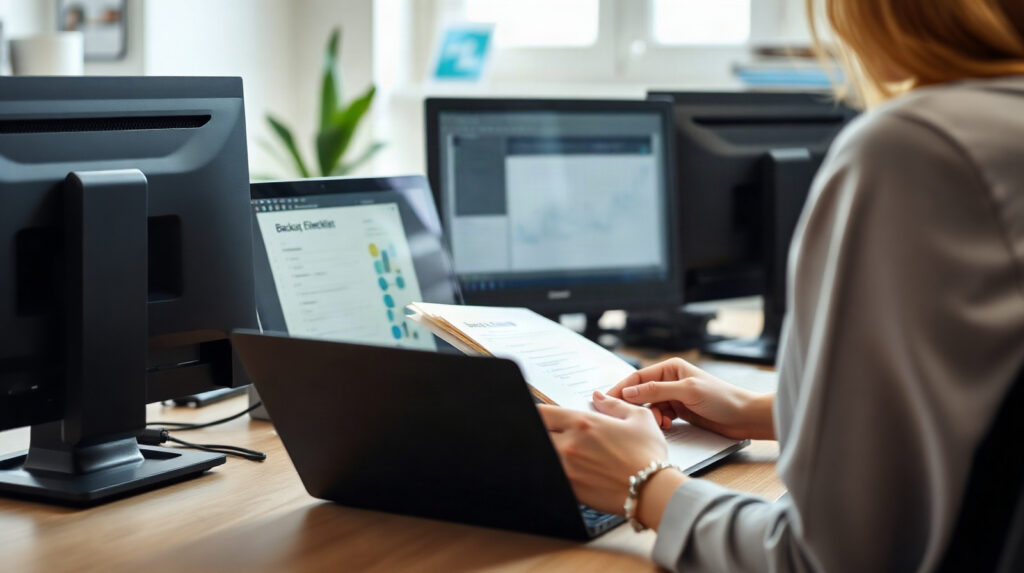
A practical software checklist
Use this checklist before purchasing or changing the setup.
- Map the workflow: list reception, clinical, management and remote tasks, then identify the approved application for each one.
- Check clinical compatibility: confirm supported Windows editions, browsers, scanners, printers, smart-card devices and integrations with the clinical software supplier.
- Standardise PCs: use consistent Windows configurations, separate accounts, automatic locking and controlled permissions.
- Choose office tools: use Word, Excel, PowerPoint, Outlook and OneNote for appropriate administrative work, not as a replacement for clinical records.
- Decide on storage: define which information belongs in the clinical system, shared folders, approved cloud services or offline archives.
- Assess the server: consider Windows Server 2025 Essentials or a managed hosted alternative only after documenting the need, administration plan and recovery process.
- Protect endpoints: combine updates, encryption, access controls, endpoint security and staff training.
- Test recovery: verify that the practice can restore important files and continue essential work after a device, server or service failure.
- Review regularly: remove access when staff leave, review permissions, check suppliers and update the setup when the practice adds locations or services.
For many small practices, the best starting point is a small number of consistently configured Windows 11 Pro PCs, the clinical vendor’s supported application, an appropriate desktop office suite, professional security controls and a properly managed storage or server arrangement. The right choice depends on the clinical workflow and who is responsible for administration.
Genuine software licences for Windows, Microsoft Office and selected security products are available from KEYFORREST with instant electronic delivery. Review the current product page and confirm the licence scope and compatibility before assigning software to practice devices.
Často kladené otázky
Is Windows 11 Pro suitable for a small medical practice?
It can be suitable for reception, clinical and management PCs when the clinical software supplier supports it. Pro includes professional security and administration capabilities, but the practice still needs correct configuration, updates, access controls and backups.
Can Microsoft Office replace dental practice software?
No. Office is useful for correspondence, spreadsheets, presentations, email and notes, but it is not a replacement for specialist dental practice software or a clinical record system.
Does every physiotherapy practice need a local server?
No. A hosted clinical system or managed service may be appropriate. A local server becomes worth considering when the practice needs on-site shared resources or the clinical supplier requires it. Have an administrator manage it and test its recovery process.
Is antivirus enough to protect patient data?
No. Endpoint security is one layer. The practice also needs updates, strong authentication, least-privilege access, encryption where appropriate, safe backups, staff awareness and a documented incident process.
Should a practice use ESET HOME Security Premium on every PC?
Do not assume so. ESET HOME Security Premium is identified as a consumer product for the ESET HOME ecosystem. Confirm with your IT provider whether its management and protection model is suitable for business endpoints and any local server.

O autorovi Marios Chaidousis
Související příspěvky

Ransomware Protection for Medical Practices: A Practical Checklist
-
Publikoval: Marios Chaidousis
Ransomware protection for medical practices is not only an antivirus decision. This practical checklist combines safer user accounts, updates, backups, recovery planning and layered endpoint security for small clinics.
Windows Server Essentials Licensing for Small Practices
-
Publikoval: Marios Chaidousis
A practical guide to Windows Server Essentials licensing for small practice environments, including user and device access, CAL planning, permissions, backups and setup questions for your IT provider.

Office Home and Business, nebo Microsoft 365 pro praxi?
-
Publikoval: Marios Chaidousis
Lékařské, zubní a fyzioterapeutické praxe potřebují spolehlivé nástroje pro práci s dokumenty, aniž by ztratily kontrolu nad informacemi o pacientech. Toto srovnání vysvětluje, kdy stačí Office Home & Business 2024 a kdy je vhodnější Microsoft 365 Business Standard.

ESET vs Bitdefender for a Small Medical Practice
-
Publikoval: Marios Chaidousis
For a medical, dental or physiotherapy practice, antivirus selection is mainly a question of workflow, device coverage and patient-data risk. This comparison examines ESET HOME Security Premium and Bitdefender Total Security in those practical terms.

Windows 11 Pro for Medical and Dental Practice PCs
-
Publikoval: Marios Chaidousis
Windows 11 Pro can provide a practical foundation for reception, consultation-room and administration computers. This guide explains what it helps with, what it does not guarantee, and how to prepare practice PCs safely.